Private Household AI Server: Use Case 1 - Coffee Creamer NFC Tag App
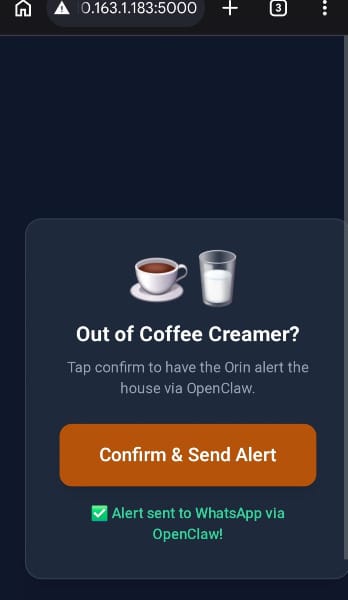
So this is what we're going to build with the help of Cursor and Gemini. The concept is the "Ordun Household AI Server", with the first app being a NFC Tag App that notifies everyone in the house that we're out of coffee creamer.
I'm not that crazy about coffee creamer. I'll use milk and coffee and be totally fine. But might as well build a project that's helpful. So this is what we're going to build:
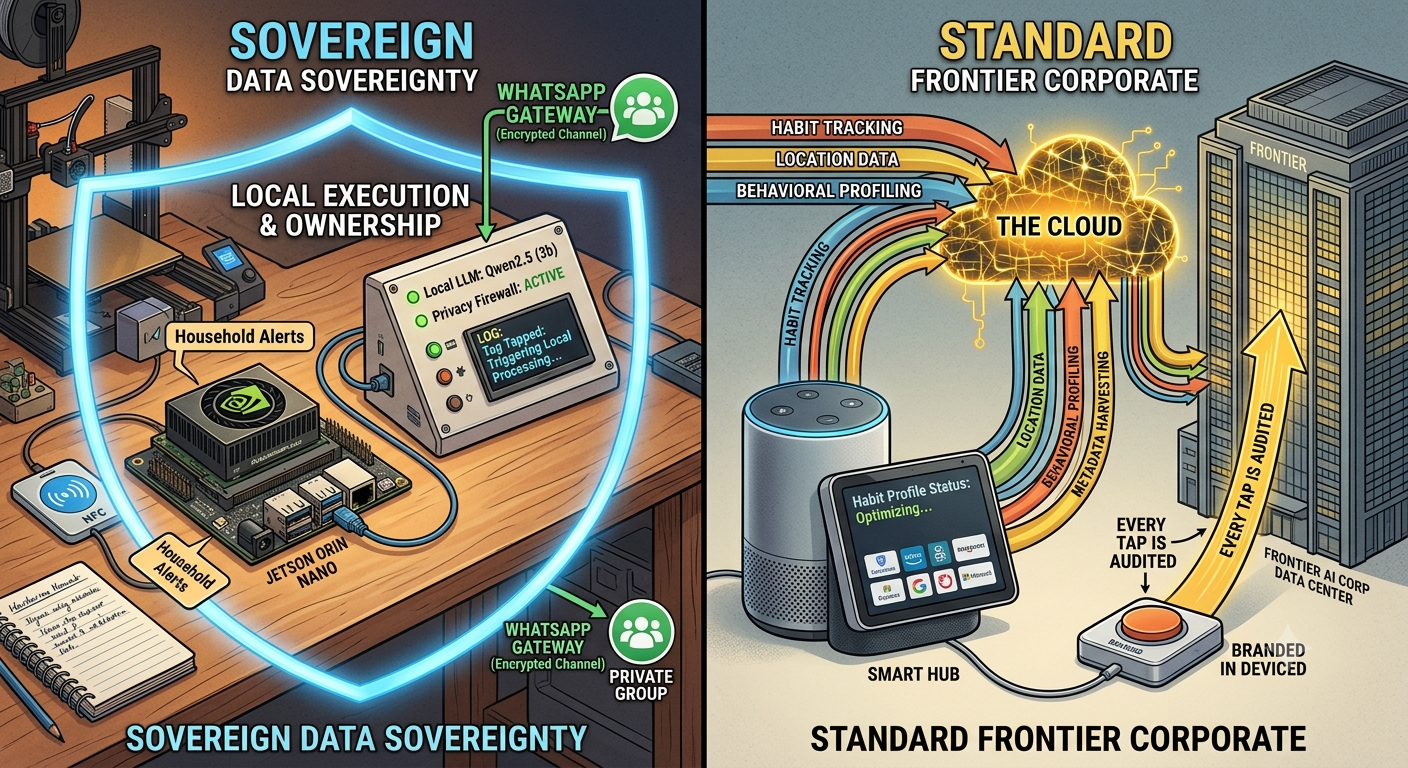
The concept is the completely sovereign, private, local (no third-party/corporate API data passing) "Ordun Household AI Server", where we use our own LLM on a GPU-enabled server that's small enough, it weighs less than one of those huge Yeti mugs. No frontier model, no Twilio, no reliance on a corporate service, with the tradeoff being on commercial convenience, but data privacy.
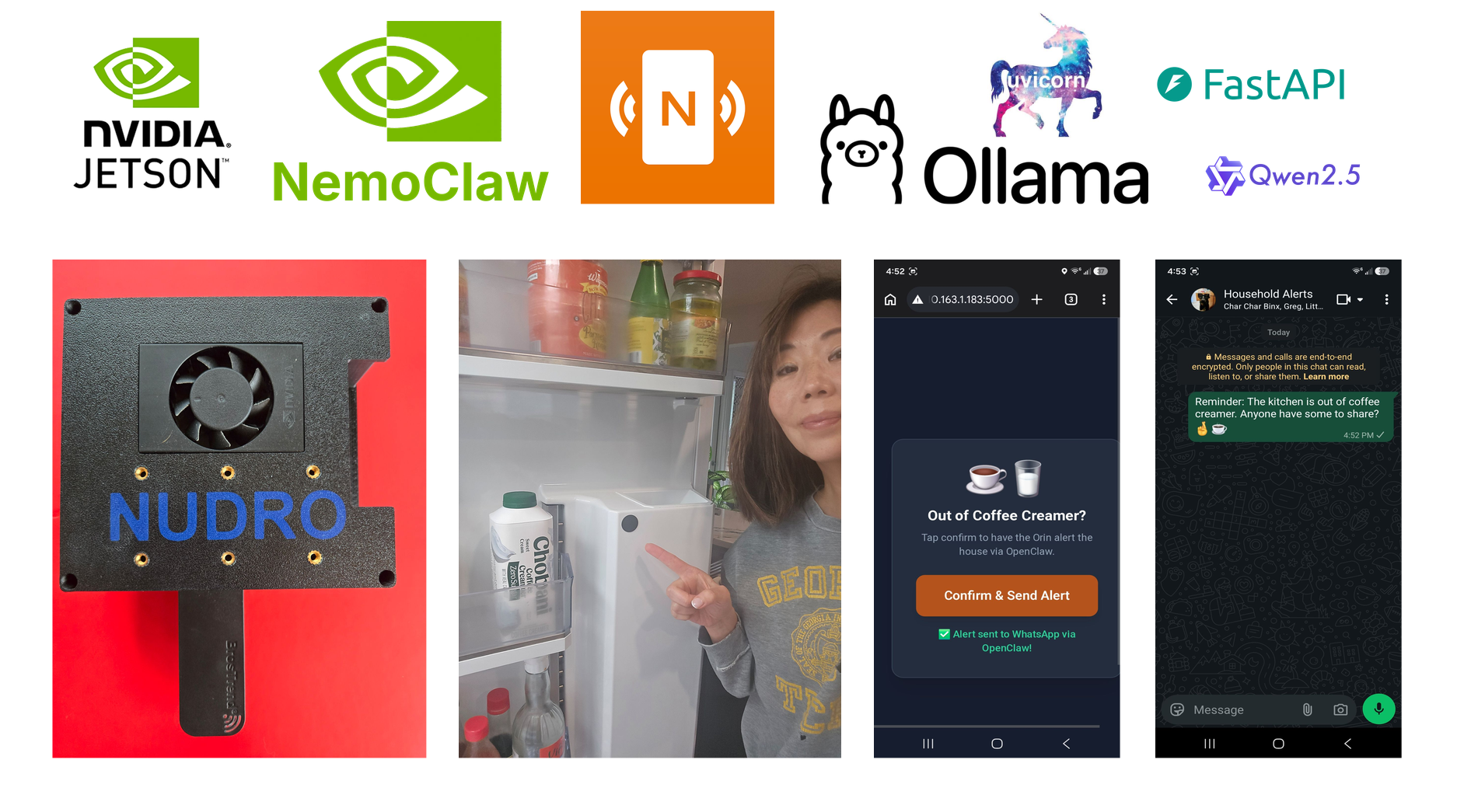
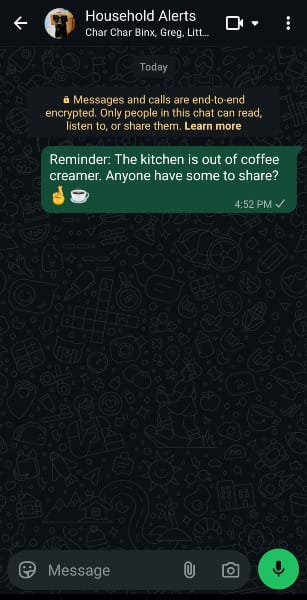
The first app built on this server will be a NFC Tag App that notifies everyone in the house that we're out of coffee creamer. Everything runs local on a GPU-enabled 8GB VRAM Jetson Orin Nano, using NemoClaw as the OpenClaw secure orchestrator, the NFC Tools App for Android that writes/reads the tag, and will parse the prompt using Ollama suite, using qwen2.5:3bthat comes INT4 quantized. The app.py consists of Uvicorn that is an async messaging/data server and FastAPI as the API backend. The output as you can see below, is a message sent to a group chat on WhatsApp.
NFC Tag App
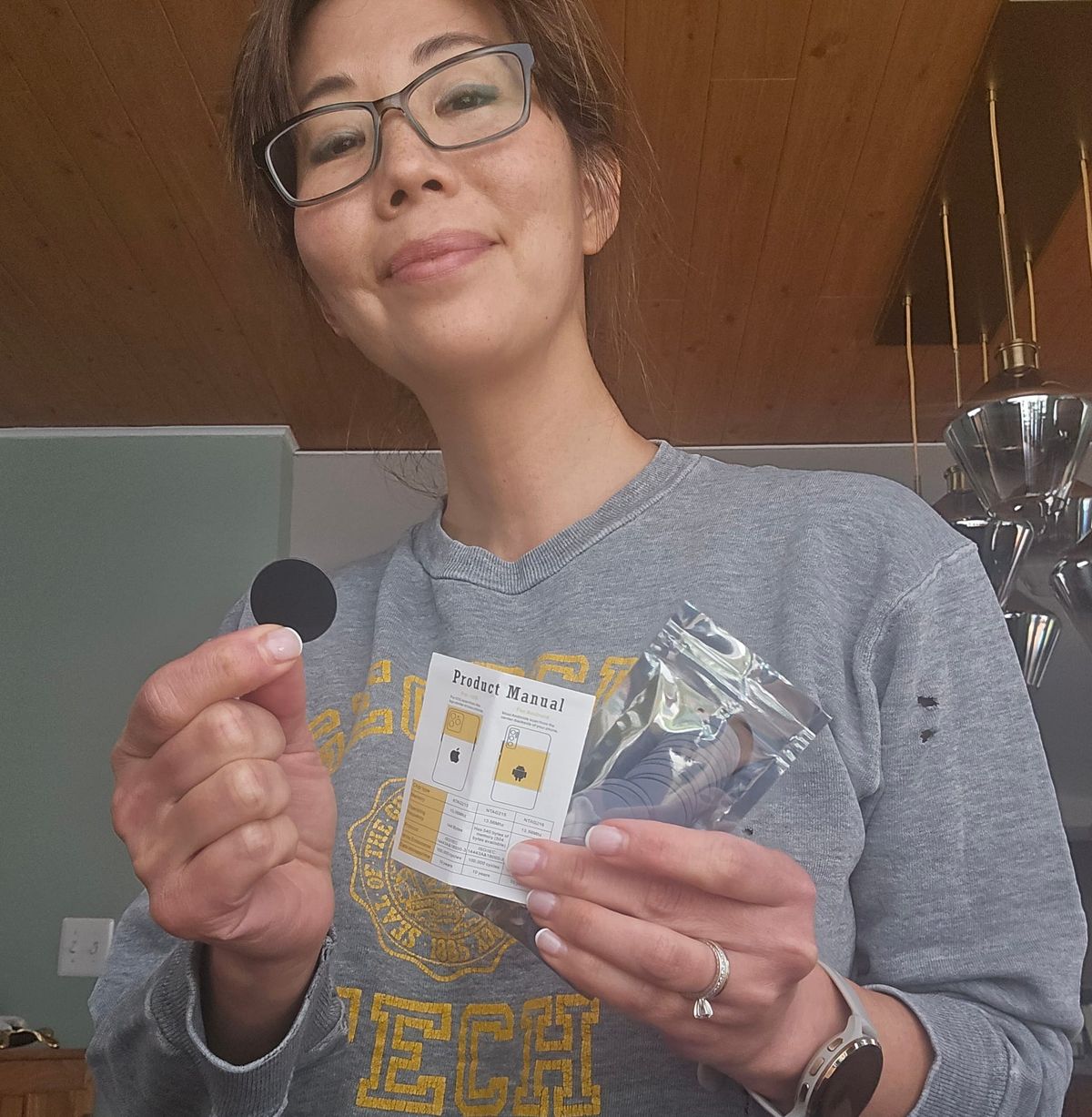
This was the easiest part of the entire process. For about $12, you can buy a bag of 30 NFC Tags on Amazon. I purchased the BABIQT chips that are NTAG213/215/216 types.
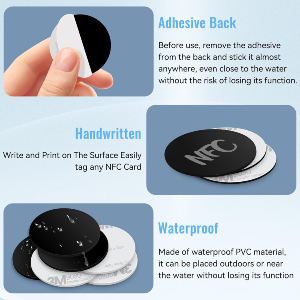
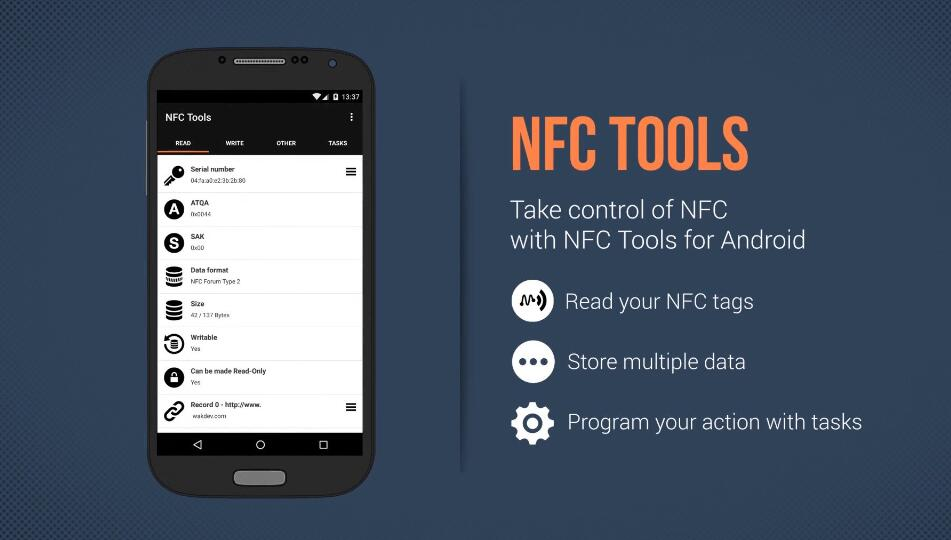
ll you do is download the app, NFC Tools (I have a Samsung S24), and go through the process.
Writing to the Tag (Registering the Trigger)
- Open NFC Tools and select the Write tab from the main dashboard.
- Tap Add a record, select URL / URI, and input your local web server configuration target endpoint (e.g.,
http://<your-jetson-nano-ip>:5000/creamer). - Tap OK, then tap the primary Write button.
- Hold your NTAG213 tag against the back of your phone until the app displays a green success checkmark.
Reading the Tag (Verifying the Pipeline)
- Move to the Read tab (or simply exit the app entirely to simulate a clean home tap).
- Hold the programmed tag to your phone's NFC sweet spot—the app will instantly parse the data payload block and display the encoded address URL layout, confirming it is ready to trigger your automation script.
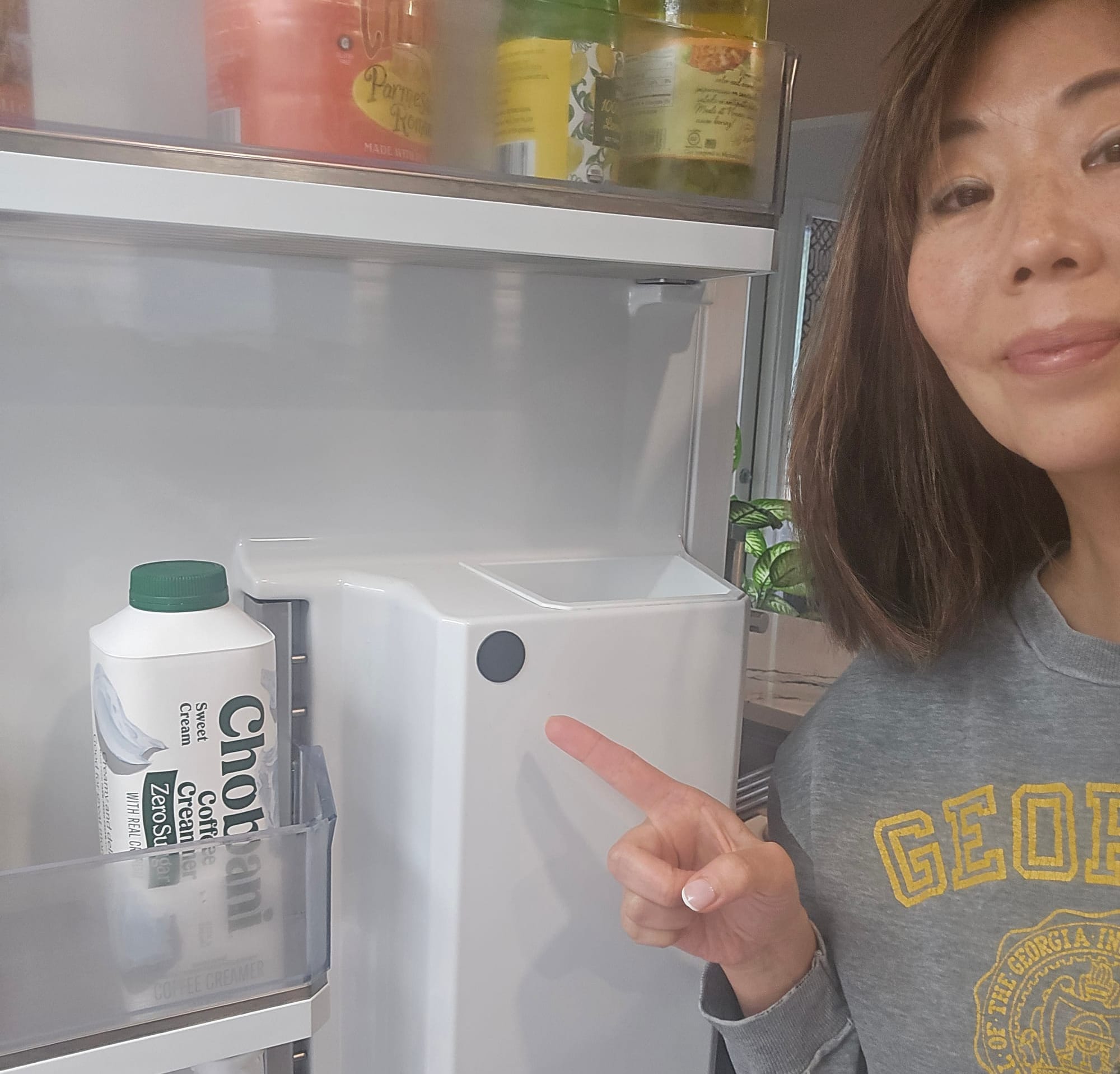
You can stick this anywhere. Some ideas are a "Guest Wifi" app, where visitors can come in, tap the tag, and automatically get onto your home's guest wifi. But for me, well, it's just a prototype to build a "Get Coffee Creamer App".
Work Setup
✅ Primary Machine: NVIDIA DGX Spark. I just happen to like working on my Spark, but you can do this from a Mac or Windows machine. It's just your central machine where you have your AI coding tools set up and you can remote into the Jetson. On it are:
- Gemini Pro for "human conversations" about the project.
- Cursor for the networking implementation, especially for debugging Nemoclaw; and SSH'ing into the Nano. I set
sshon my Orin Nano and used Cursor to remotely log in
✅ Jetson Orin Nano as the local server with its own monitor, for manual bash commands/terminal work; and all the peripherals (USB-C, mouse, keyboard, WiFi USB)
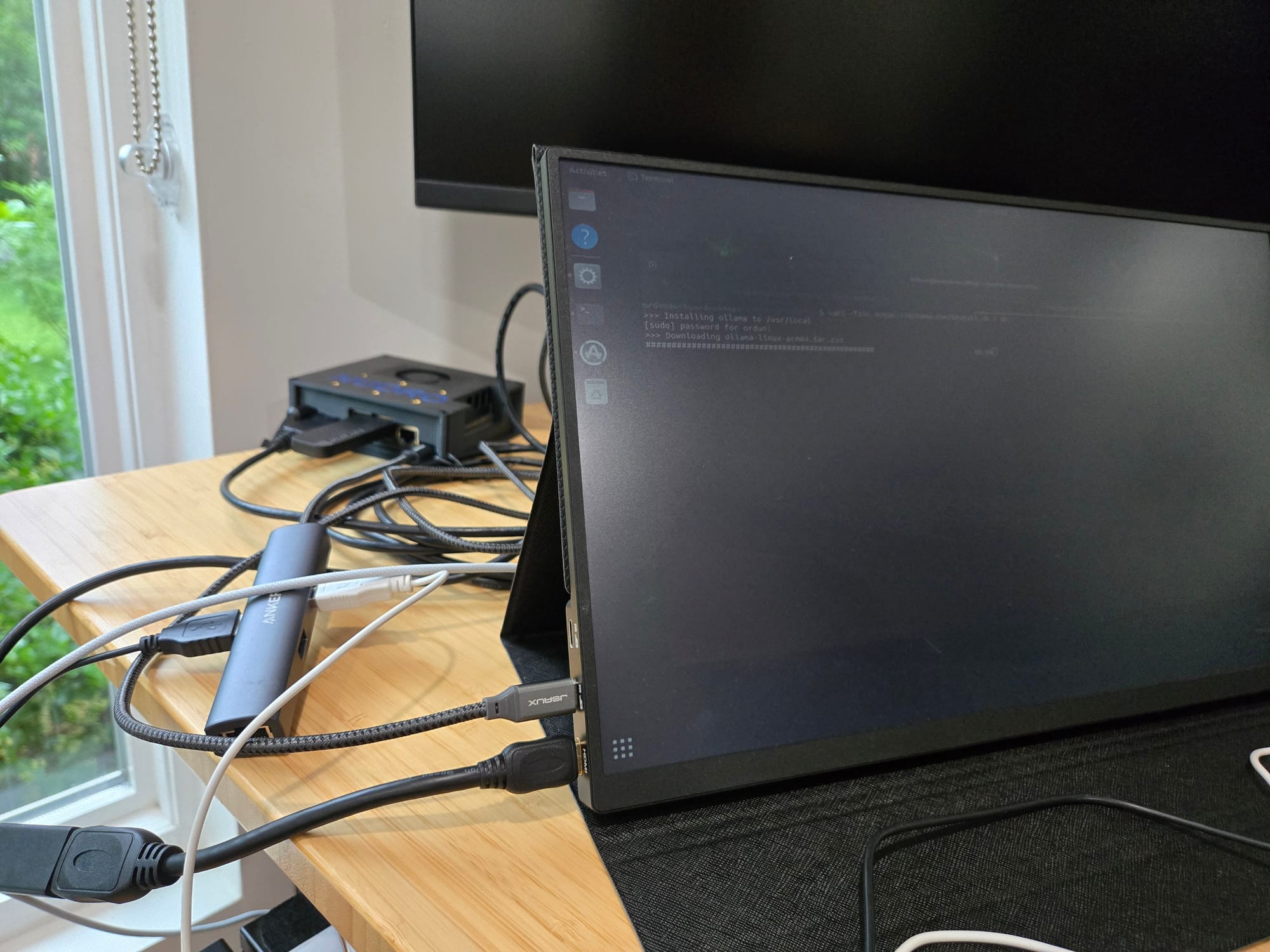
For the Jetson, ensure you've set up ssh privilege to remote into it. I worked off of my DGX Spark and remoted into the Jetson, while also having the Jetson physically connected to a monitor. So for me, there were two ways of entry. You want to set up to MAXN SUPER on the Jetson. On the Orin you can see the power change on the top right hand corner. There's 0:15W, 1:25W, 2: MAXN SUPER, and 3: 7W. I am using the standard 45W power supply that came with the NVIDIA Orin packaging. Using MAXN SUPER unlocks the maximum hardware limits and pins CPU/GPU cores to their highest clock frequencies while maximizing the deep learning accelerator. For an LLM, we need to remove standard power caps due to the attention mechanisms, giving it a 2X boost than without it.
sudo nvpmodel -m 2
sudo jetson_clocks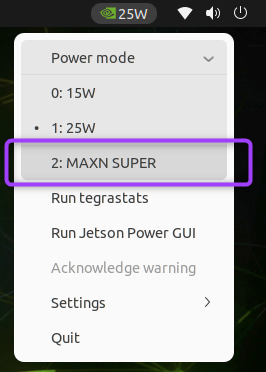
For everything else on the Jetson, I'm going to assume you already have used a Jetson device before. Otherwise, I recommend going here to the official NVIDIA Nano Developer Kit User Guide (I attached a NVMe card instead of micro-SD card for memory). This will show you which SDK to download and how to get it flashed on Balena Etcher (which you will need a micro-SD card). This will set up Linux Ubuntu 22 on the device.
Complete Stack
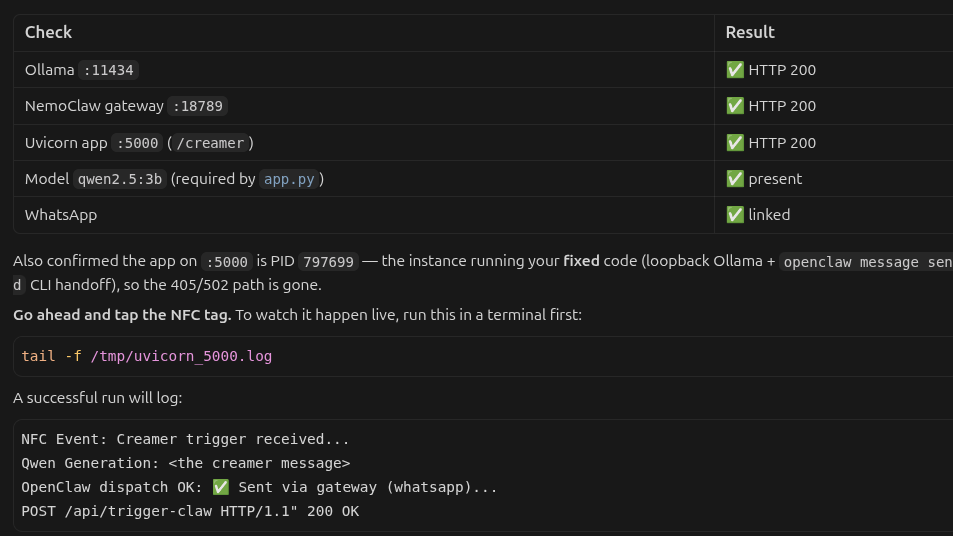
FastAPI app.py
Cursor wrote the API that detects the signal from the NFC Tag App (Confirm & Send Alert) and triggers OpenClaw to pass the message to Qwen and output a response in WhatsApp to my family's group. After debugging the WhatsApp messaging passing issues (below), the app is updated to reflect these general details:
app = FastAPI()

OLLAMA_URL = "http://127.0.0.1:11434/api/chat"

# WhatsApp delivery target — persisted on disk across reboots
#   ~/.openclaw/openclaw.json          -> channels.whatsapp.groups
#   ~/.openclaw/credentials/whatsapp/  -> linked session (survives reboot)
#   ~/.npm-global/lib/node_modules/openclaw/ -> CLI + Baileys

ALERT_CHANNEL = "whatsapp"
HOUSEHOLD_GROUP_JID = "AbCdEfGhIjKlMnOpQrStUv@g.us"  # fake string btw
ALERT_TARGET = HOUSEHOLD_GROUP_JID
OPENCLAW_BIN = shutil.which("openclaw") or "/home/ordun/.npm-global/bin/openclaw"
OPENCLAW_WHATSAPP_AUTH_DIR = "/home/ordun/.openclaw/credentials/whatsapp/default"
NemoClaw Stack

WAIT! You should download your LLM before setting up NemoClaw. This is because you will hit a drop down for which LLM to choose, and you'll want to select Option 7 because that pins your LLM to a local model. Scroll down, and install ollama first, then come back to this.
Done?
Ok, continue and download NemoClaw.
You can copy/paste the below to your own AI IDE tool, but here are the brief instructions. It's just like downloading and installing OpenClaw. It'll take you through all the same space-bar selection wizard prompts. I learned the NemoClaw isn't solely dedicated to running only on NVIDIA devices, per se, but it's heavily optimized for CUDA.
Make sure to chose WhatsApp in the channels selection bar.
1. Initialize the Onboard Script
Pull the official setup bundle directly down to the Jetson host using curl:
curl -fsSL https://get.nemoclaw.ai | bash
2. Execute the Framework Wizard
Run the onboarding orchestrator to pull down the localized dependencies and build the isolated environment:
nemoclaw onboard --runtime=nvidia
(Passing the --runtime=nvidia flag ensures the system bakes in the Container Device Interface (CDI) mappings required for local GPU hardware acceleration).
3. Spin Up the Sandbox Layer
Initialize and deploy the containerized connection gateway:
nemoclaw openclaw-sandbox create --channel=whatsapp
4. Verify the Deployment
Confirm the infrastructure is live, healthy, and communicating with your host's local inference weights:
nemoclaw openclaw-sandbox status
Ollama Issues
STOP! You need to do this step first, before moving onto NemoClaw. So if that's what you're here for, please continue.

I had problems with the LLM seeing the GPU, and it took 3 minutes for a 3B to run, causing a timeout and the NFC App to fail. I had downloaded the model weights for Qwen, but not the runner. It was installing binary-only with its built-in CPU path, without a CUDA runner (hence, no way to access GPU). This command downloaded it to install the JetPack CUDA runner:
curl -fsSL https://ollama.com/install.sh | sh
This is safe and idempotent, meaning: it replaces the binary and adds the missing CUDA runner and the models, where they already live /usr/share/ollama/.ollama/models is untouched. A runner is the backend. It's the inference engine libraries (CUDA/GGML) that runs all models - so there isn't just a qwen2.5:3b special runner. It's model-agnostic. For JetPack, the runner oversees the engine for all in the Ollama suite. Now that it's using GPU, Ollama has loaded 28 of 36 layers on the GPU (~1.58 GB VRAM) and the rest is on CPU. Now it takes 5 seconds to reply, as opposed to 3 minutes on CPU.
I used qwen2.5:3b but as you guys know, the Ollama library hosts a bunch of open-weight models for different tasks. Llama 3 and Llama 3.1, Mistral 7B, Gemma 2: 2b, 9b, 27b and phi-3 as well as code generation, and multimodal (LLaVA) models. You can download and run any of these like so:
ollama run llama3.1 or ollama run gemma2:2b
So as the overall choreography of installation, use this:
1. Download & Install Ollama
This one-liner downloads the official installation binary and configures it as a persistent system background service:
curl -fsSL https://ollama.com/install.sh | sh
2. Run a Model (Download Weights & Start the Runner)
This command acts as the dynamic runner. If the specified model weights aren't cached locally, it pulls them from the registry and immediately opens an interactive prompt session:
ollama run qwen2.5:3b
3. List Local Models (Verify Weights Cache)
To audit all downloaded model weights currently sitting in your local system storage:
ollama list
During the NemoClaw onboarding phase, you'll be prompted for which communication channels you want to use, like Telegram, Discord, etc. You'll select WhatsApp.

nemoclaw openclaw-sandbox login --channel whatsapp
You'll need to run that syntax in terminal on the Jetson so that it outputs a QR Code. Go into the Settings of WhatsApp and take a snapshot of the QR code to pair with your account.
Issues with Group Chats.
There were a ton of issues with getting OpenClaw to send a message to my Whatsapp Group Chat called "Household Alerts" that everyone in my family subscribes to.
Getting rid of the pinned openai gpt5-mini key. First, a few months ago, I used an OpenAI API Key to test out OpenClaw on the Nano. Long story short, this was honestly a very long vibe coding session with Cursor to help me debug to absolutely ensure that OpenClaw was going to use `qwen2.5:3b` on my local server. This was kind of a tokenmaxxing bender that I'm sure, would have taken me days to have debugged on my own. Most of this discovery was consumed by investigating the source of Out-of-Memory errors.
Cursor also created this Modelfile to reload the same parameters in each and every time. I thought this was really interesting. Because I haven't worked with Ollama so frequently, here's what I learned. That FROM command at the top is a declarative file - you can also use PARAMETER and SYSTEM, that's compiled into a model image with innate hardware parameters that is unique the Ollama ecosystem. This is like a Dockerfile. I asked for this because it prevents having to constantly reload qwen back into and out of memory (its 26 layers) and also reproduces the same memory footprint: same number of GPUs and the context window. The default num_ctx for qwen2.5:3b is 32,000 tokens which would cause an Out-of-Memory (OOM) error like what I just experienced. So constraining it to 4096 - which is fine because I'm just asking for coffee creamer, not a novel - works.
FROM qwen2.5:3b

# Jetson Orin Nano tuning: the iGPU shares system RAM. Full-GPU offload of
# qwen2.5:3b OOMs (cudaMalloc failure), so pin a conservative GPU layer
# count and context that fits alongside the OpenClaw gateway + desktop.
# Baking these into the model means every caller (app.py AND the OpenClaw
# agent) loads the SAME instance with identical params, so Ollama never
# reloads/thrashes and only one copy is ever resident.
PARAMETER num_gpu 8
PARAMETER num_ctx 4096
Big Problem - Get the JID
In March 2026, I installed OpenClaw on this very Nano to try it out. Evidently, the install still remembered my old configs pointing it to OpenAI/GPT5-Mini. So working with Cursor, we had a very long ordeal trying to unpin it from the agent. Even deleting the OpenAI API Key, it would still loop in a 401 error.
It was messaging directly to me, and only me, but not to the group I set up. As a result, we need a JID - a distinct string that is the group's identity. This is something that Cursor then uses to update the groups config channels.whatsapp.groups.
This took way more time than I thought, leading me down a rabbit hole into the Developer Console of Firefox, but Gemini eventually showed me an easier way to find the JID. You'll notice the name of my group is 'Household Alerts'. To find the JID of the group you want OpenClaw to send message to, tap on the very, very top of the group name - like on the image (dog with sunglasses) of whatever your icon is. Scroll down and generate a QR Code. Grab that link and email it to yourself.
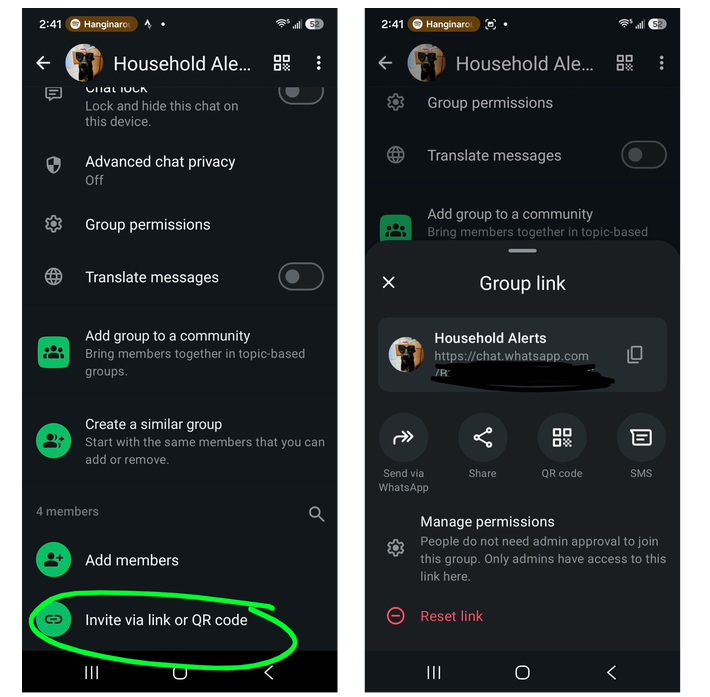
Here's an example - that link JID is totally fake, by the way, just to give you an example: https://chat.whatsapp.com/AbCdEfGhIjKlMnOpQrStUv?s=cl&p=a&ilr=1&amv=2
// Wrong — unquoted identifier + query string breaks JS
groupInviteCode: AbCdEfGhIjKlMnOpQrStUv?s=cl&p=a&ilr=1&amv=2

// Right — invite code only (from the URL path, not the ?query part)
const INVITE_CODE = 'AbCdEfGhIjKlMnOpQrStUv';
Now, this is the Node.js script that Cursor generated to resolve a WhatsApp group JID from an invite code.
NODE_PATH=/home/ordun/.npm-global/lib/node_modules/openclaw/node_modules node <<'EOF'
const { default: makeWASocket, useMultiFileAuthState, fetchLatestBaileysVersion } = require('@whiskeysockets/baileys');

const INVITE_CODE = AbCdEfGhIjKlMnOpQrStUv;  // from chat.whatsapp.com/CODE
const AUTH_DIR = '/home/ordun/.openclaw/credentials/whatsapp/default';

async function run() {
  const { state, saveCreds } = await useMultiFileAuthState(AUTH_DIR);
  const { version } = await fetchLatestBaileysVersion();
  const sock = makeWASocket({
    auth: state,
    version,
    printQRInTerminal: false,
    logger: require('pino')({ level: 'silent' }),
  });
  sock.ev.on('creds.update', saveCreds);
  sock.ev.on('connection.update', async (update) => {
    if (update.connection === 'open') {
      const info = await sock.groupGetInviteInfo(INVITE_CODE);
      console.log('GROUP JID:', info.id);
      console.log('GROUP NAME:', info.subject);
      process.exit(0);
    }
  });
}
run();
EOF
The output is the below, and all you need to know is that with this file, OpenClaw now will correctly pass the notification to the "Household Alerts" group, not to "Catherine Ordun" (self).
GROUP JID: 120363424282127706@g.us
GROUP NAME: Example Household Alerts
Completion
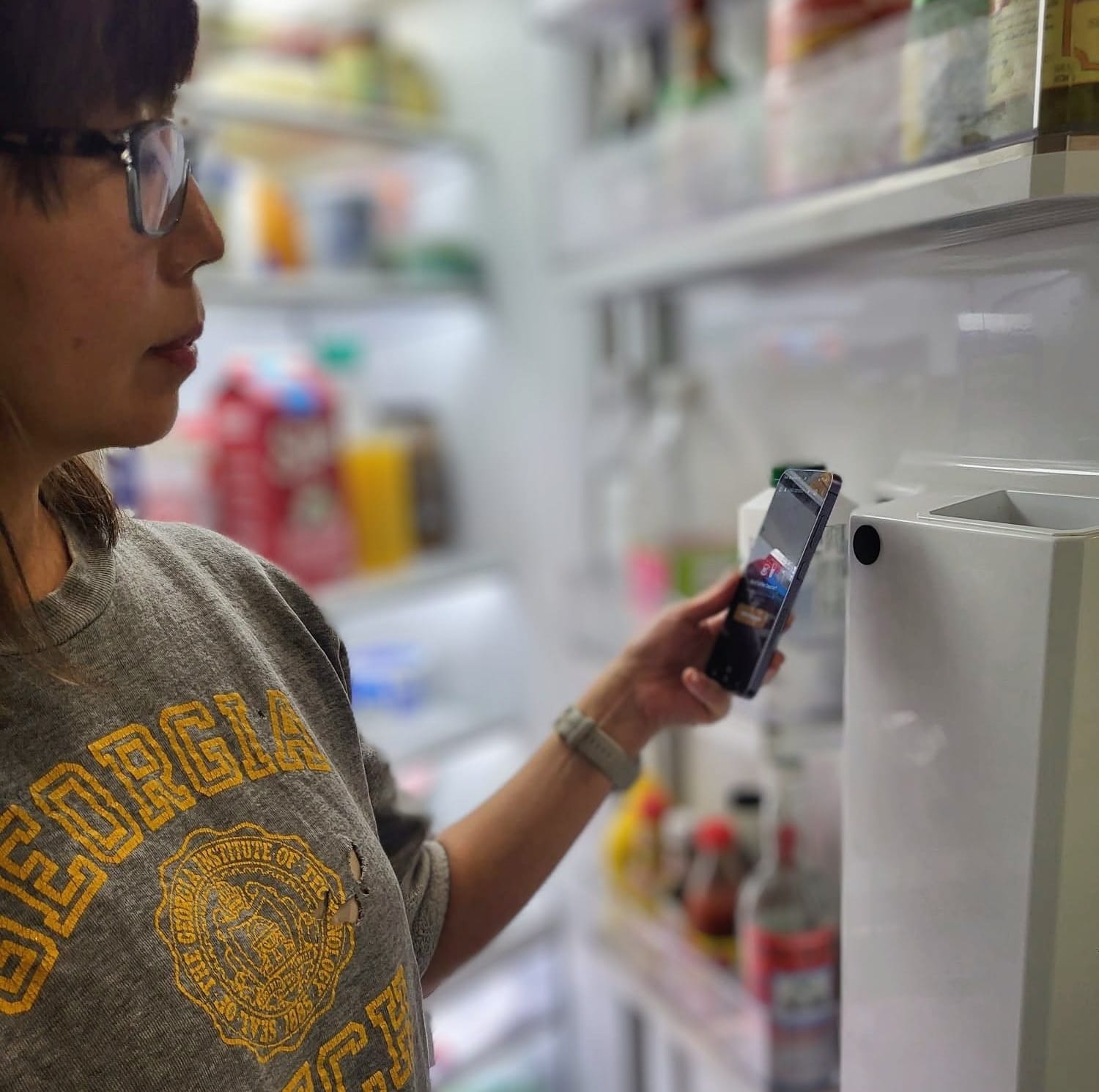
Now we just tap the tag on the refrigerator with our phone.
Jetson Orin Nano Console
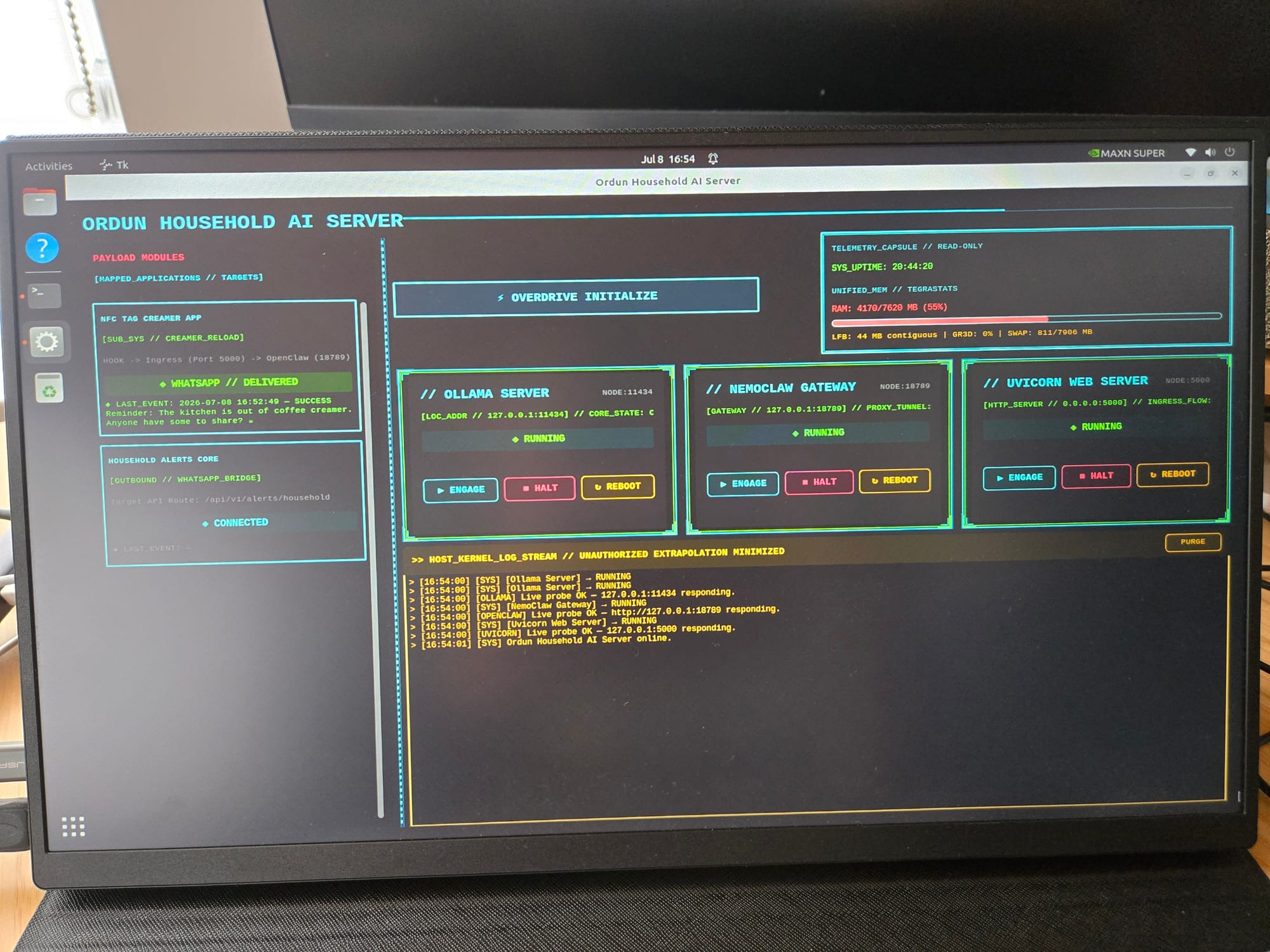
The memory cost to make a cool cyberpunk-inspired GUI is minimal. This is valuable because the Jetson needs to be on 24/7 (or however long you want the server active), but requires that the following applications are always on:
✅ Ollama Serve (ollama serve)
✅ NemoClaw Gateway (starting the sandbox, which I named openclaw-sandbox, nemoclaw openclaw-sandbox start)
✅ Uvicorn Web Server (this controls app.py for async data transfer and networking, it's a Python file that uses FastAPI)
Github
The code base is easy, but doesn't include anything on setting up the Jetson. If you use the Jetson, ensure it's the latest Orin Nano (8GB or 16GB) and configure it separately.
 nudro
nudro
Video on TikTok
@mybuddyskynet Completely local/private home automation NFC app. You'll need: ✅ NVIDIA Jetson device or Raspberry Pi ✅ An AI coding tool will make things simpler ✅ A primary machine, to remote into the Jetson/Pi The goal is to notify a group chat on WhatsApp that we're out of coffee creamer ☕ 🥛 and to please get more. Uses Ollama Suite's Qwen2.5:3b, NemoClaw, Uvicorn and FastAPI. Blog here: https://ordun.ghost.io/2026/07/08/coffee-creamer-nfc-tag-app/ #AI #machinelearning #deeplearning #nvidia
♬ original sound - 𝐦𝐢𝐥𝐚𝐧𝐚❄️